Setup Wizard Walkthrough
This page will guide you through each step of the setup wizard.
Select Language
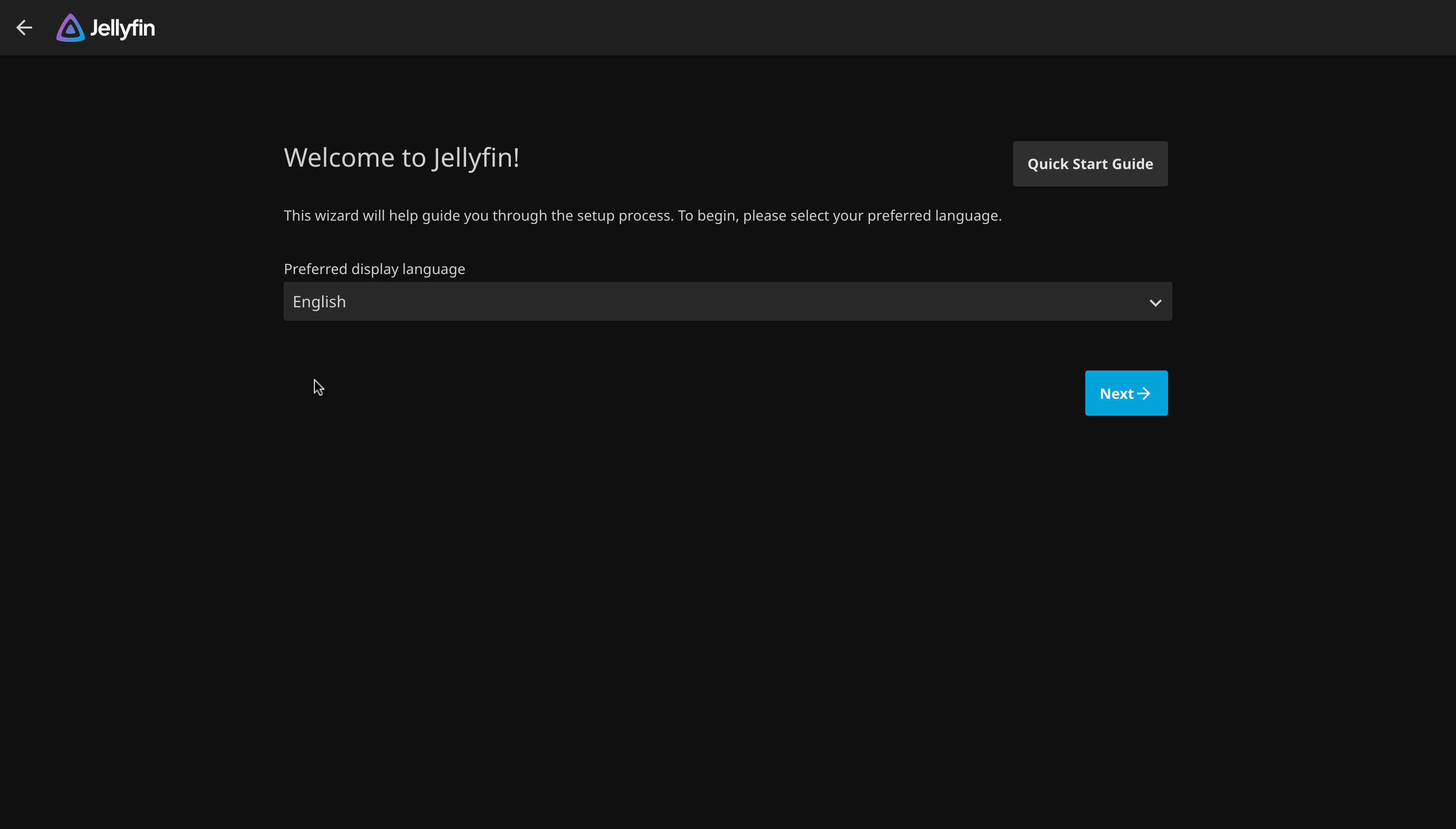
Select your preferred language for the rest of the setup. This setting only affects the client you are using. Server-wide language settings will be configured later.
Setup Administrator Account
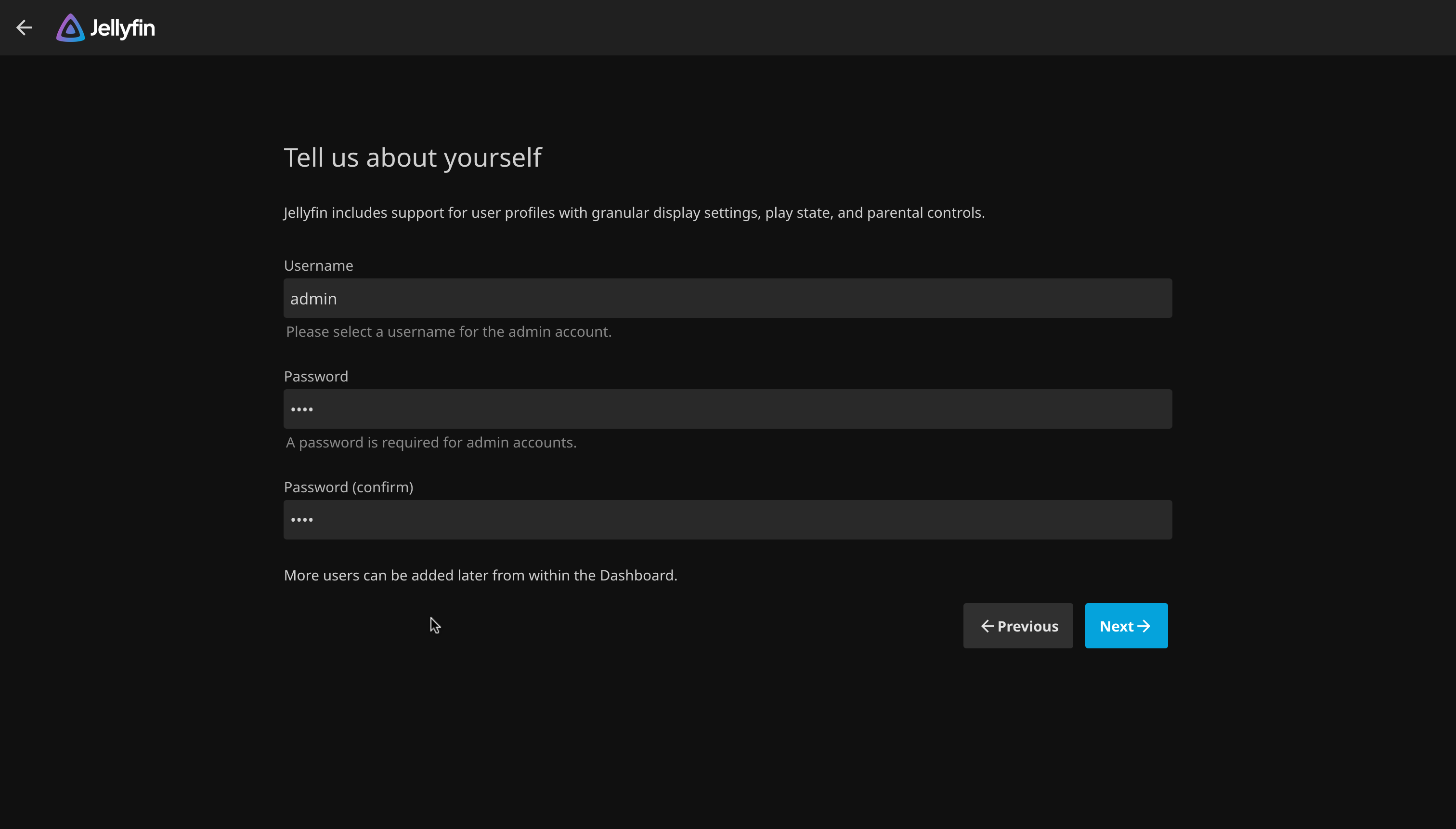
Set up an administrator account for managing the server. Choose a strong password for better security. You are able to create more user and administrator accounts once you finish the setup wizard.
Add Media Libraries
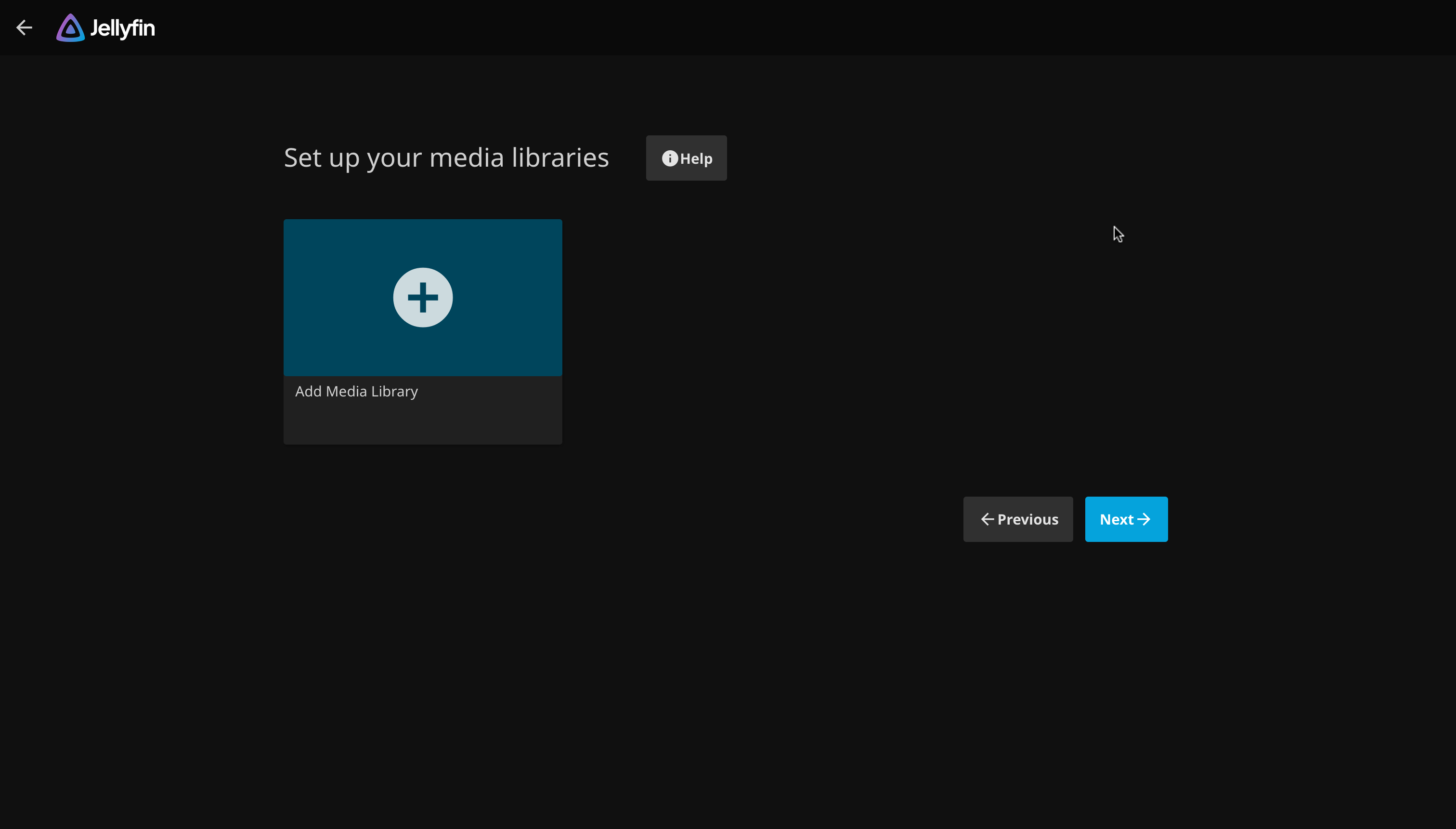
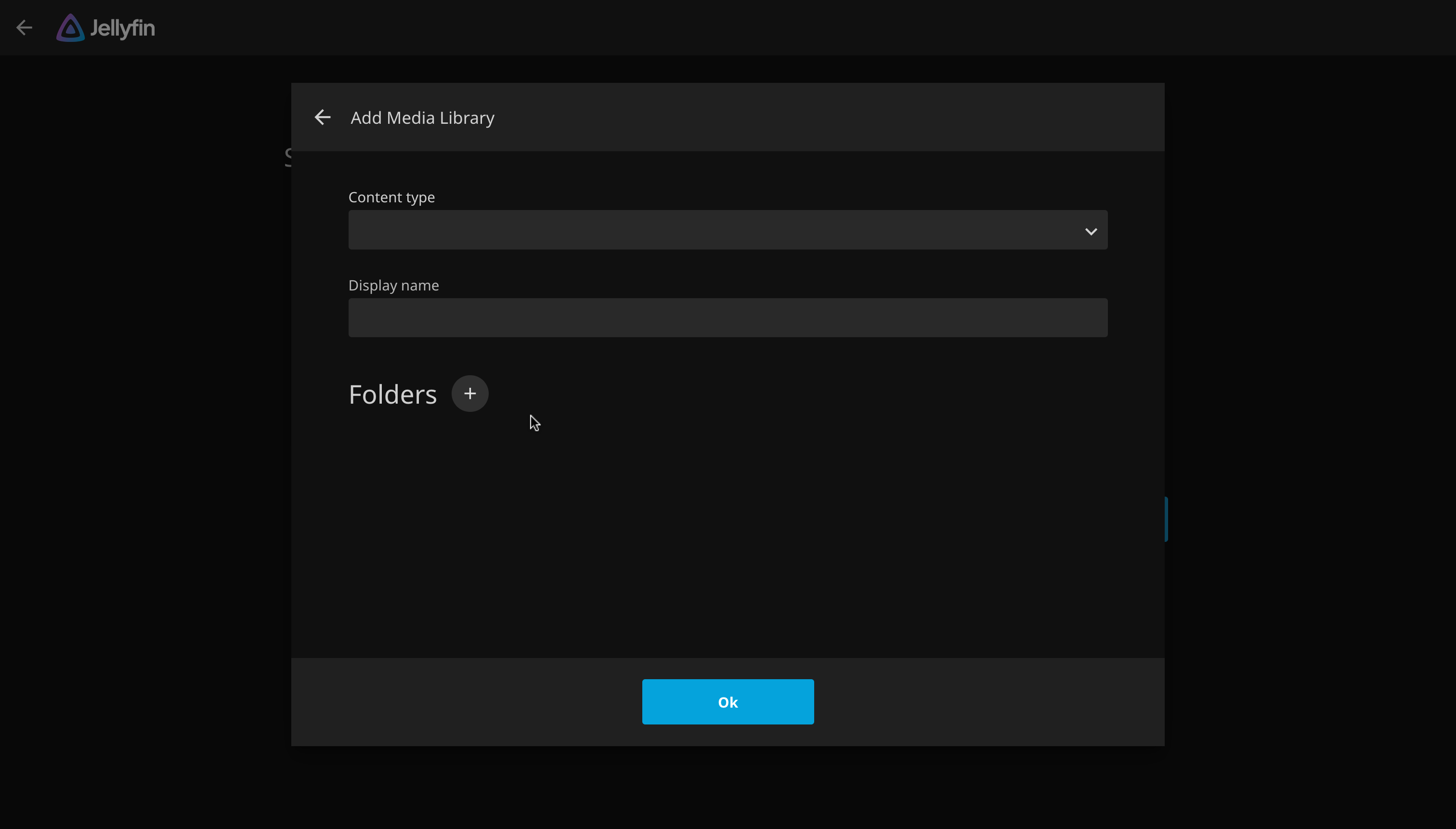
Add media libraries at this page. Click on the + to add a library. Alternatively, click on "Next" without adding anything to skip this step and add media later.
In the popup, chose a type on the "Content Type" dropdown, and set a display name in the "Display Name" field. Then, add some folders using the + button. If you don't see your media folders listed, you might have permission issues. You can get help on our forum or chat rooms. Read more about media libraries at the media libraries' documentation.
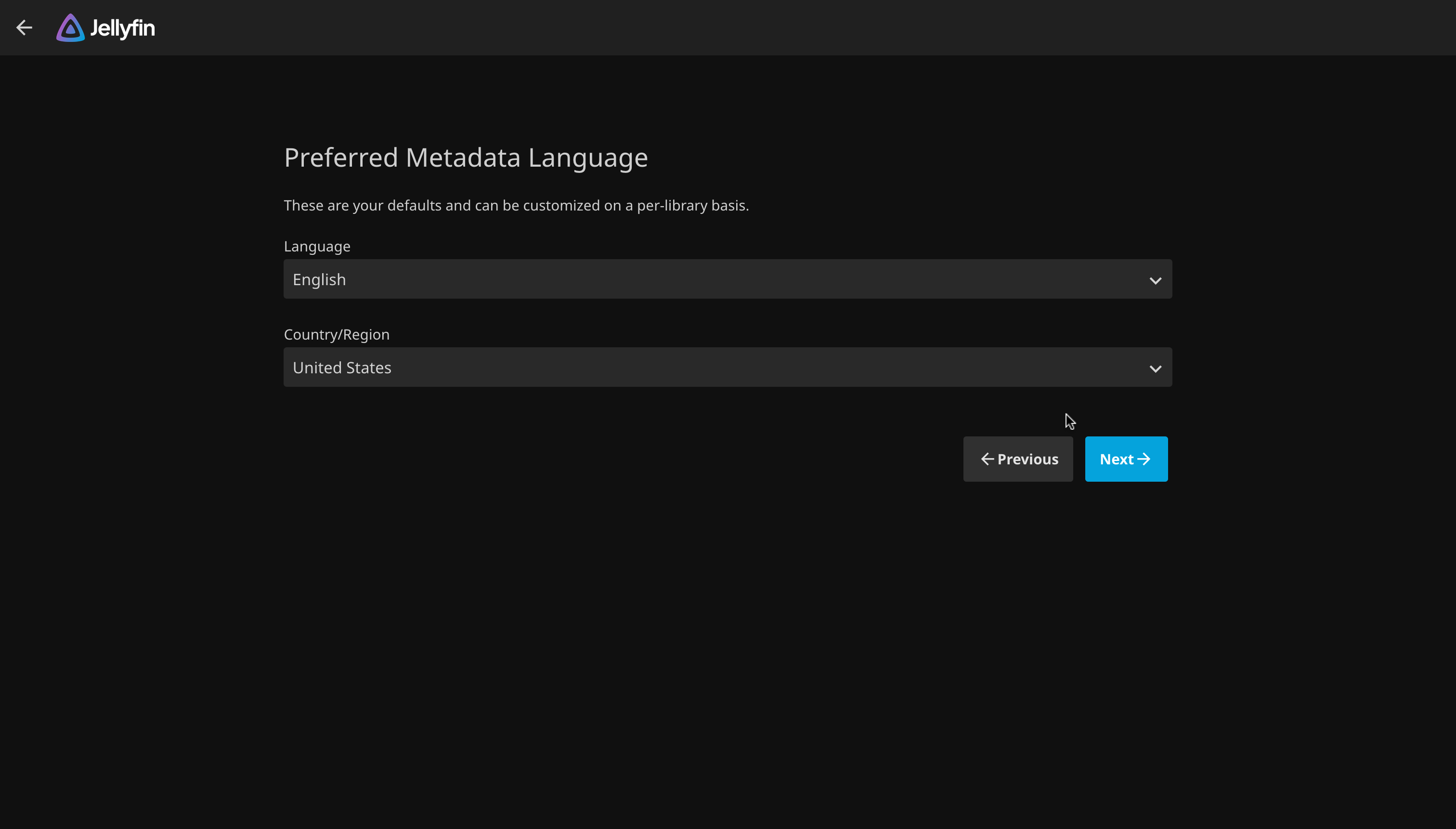
Set a Preferred Metadata Language
Select a preferred language and region for metadata fetching as the server-wide default. Metadata from other language / regions may be fetched if metadata is not available with your preferred settings. This can be further customized on a per-library basis.
Networking Settings
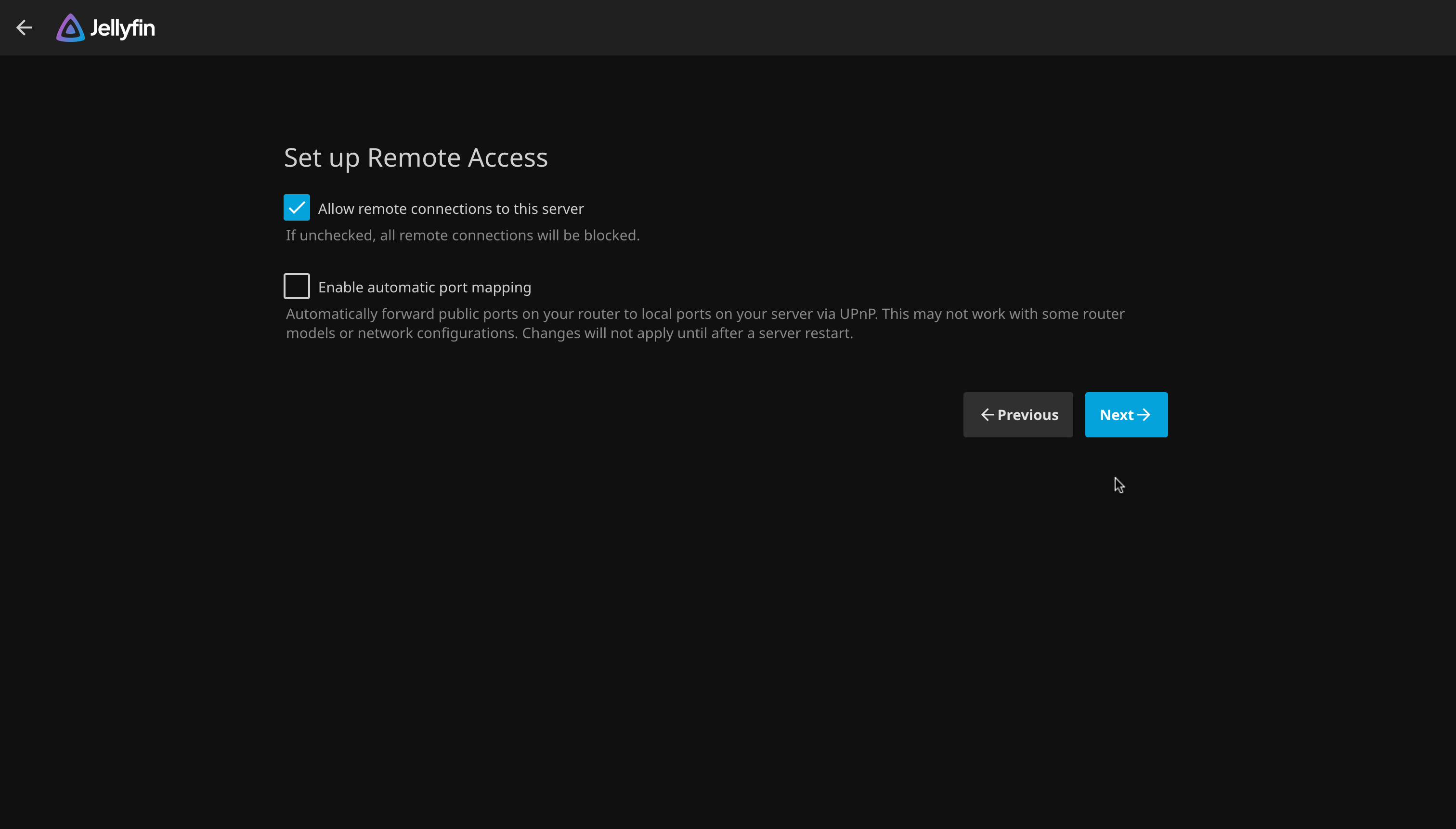
Some basic networking options can be configured on this page. For most users, it is recommended to enable the "Allow remote access to this server" option. Detailed information about remote access configuration can be found in our dedicated Networking Guide.
Since "automatic port mapping" relies on UPnP, a protocol commonly associated with security concerns, it is recommended to disable this option unless it is specifically required.
Next Steps
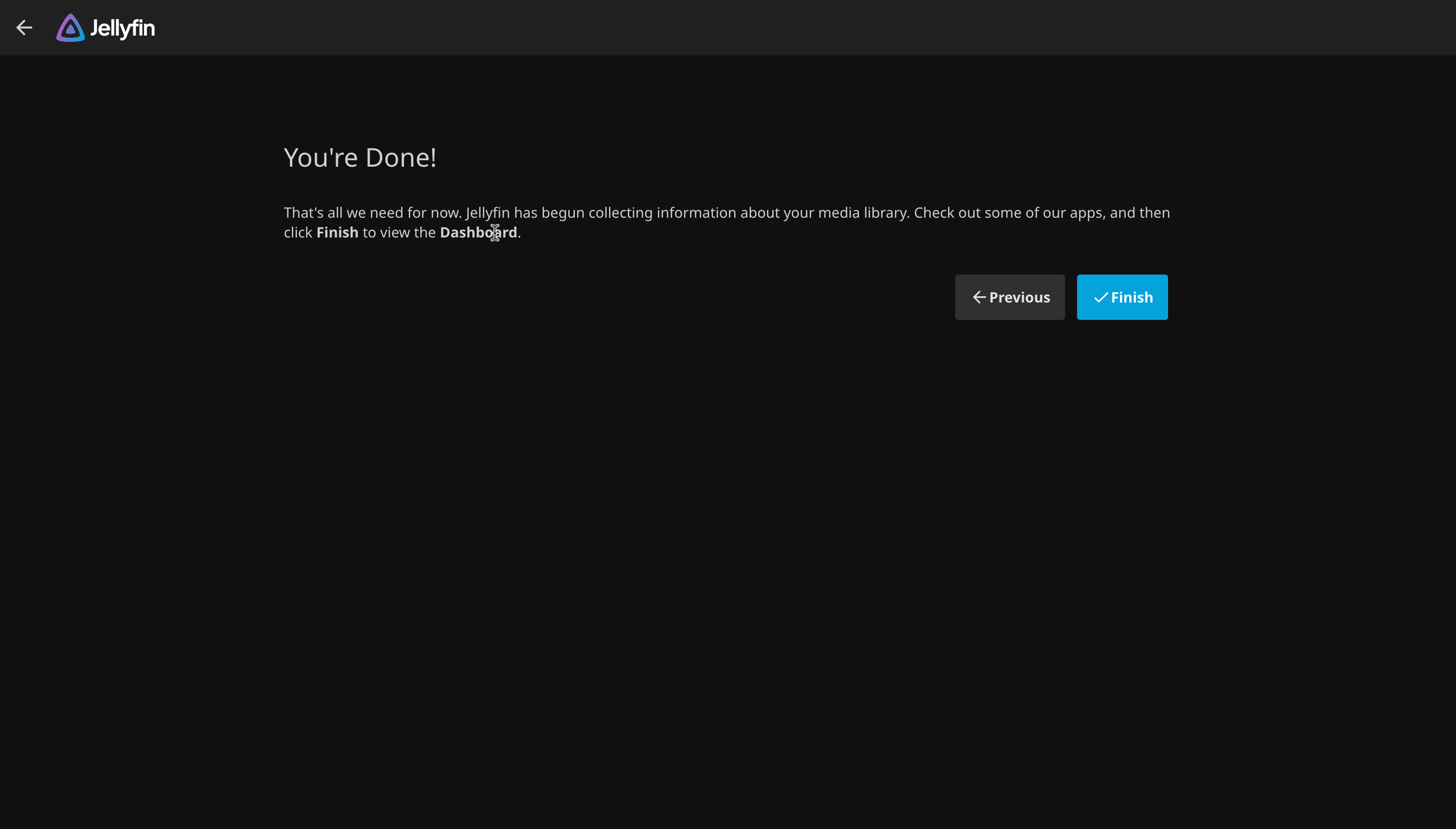
You have finished the setup wizard. Below is a list of items you should configure in order to get the best experience:
- Setup remote access to use Jellyfin when you are not at home
- Setup hardware acceleration to improve performance and/or save power